
AI Productivity Workflows: How to Save 5 Hours a Week with AI
Most business owners, marketers, consultants, and creators do not need more apps. They need fewer repetitive tasks eating up their week. AI productivity workflows can help by turning routine work — meeting notes, email drafts, weekly planning, content repurposing, and research — into repeatable systems you can run again and again.
The key is not asking AI random questions. The key is building simple workflows around tasks you already do every week. When you give AI a clear role, goal, context, and output format, it becomes much more useful as a drafting, organizing, and summarizing assistant.
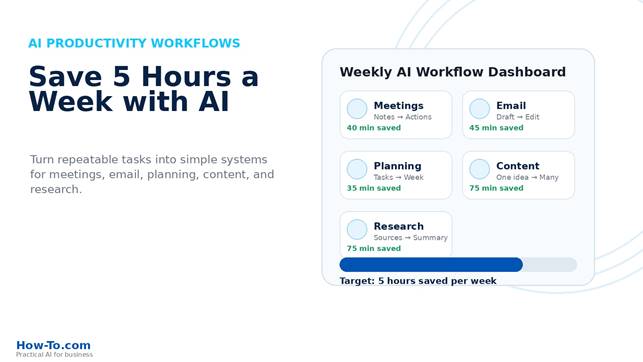
Featured image: AI productivity workflows dashboard.
Quick Answer: How to Save 5 Hours a Week with AI Productivity Workflows
| Quick Answer: You can save 5 hours a week with AI by using it on repeatable tasks: meeting summaries, email replies, weekly planning, content repurposing, and research summaries. Start with one task you do every week, create a simple prompt, review the output, and reuse the workflow. AI works best when it drafts, organizes, summarizes, or formats information you already have. Keep human review in the process so the final result stays accurate and on-brand. |
Table of Contents
- Why AI Productivity Starts with Repeatable Tasks
- The 5-Hour Weekly AI Productivity Plan
- Workflow 1: Meeting Notes to Action Items
- Workflow 2: Email Drafts and Replies
- Workflow 3: Weekly Planning
- Workflow 4: Content Repurposing
- Workflow 5: Research Summaries
- Step-by-Step: Build Your First AI Productivity Workflow
- Copy-and-Paste AI Prompts
- Real-World Examples
- Common Mistakes to Avoid
- AI Productivity Workflow Checklist
- FAQ
- Next Steps
Why AI Productivity Starts with Repeatable Tasks
AI productivity does not start with technology. It starts with pattern recognition. Before you open an AI tool, look at your week and find the tasks you repeat again and again.
Good candidates include work you summarize, rewrite, organize, format, plan, or research on a regular basis. These tasks often follow the same structure every week, which makes them ideal for a reusable AI workflow.
A good AI workflow has four parts: input, instruction, output format, and human review. The input gives AI the material. The instruction tells AI what job to do. The output format tells AI how to organize the result. Human review keeps the work accurate, useful, and appropriate for your business.
- What do I rewrite often?
- What do I summarize often?
- What do I organize often?
- What do I research often?
- What takes mental energy but follows a predictable structure?
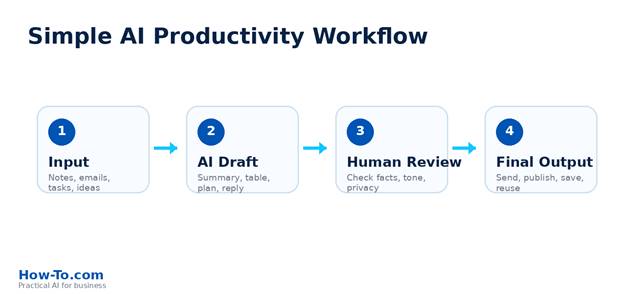
Workflow diagram: Input to AI draft to human review to final output.
The 5-Hour Weekly AI Productivity Plan
Here is a realistic weekly time-saving target. Exact results depend on your business, tool, process, and review habits, but this table shows how small workflow gains can add up.
| Workflow | Manual Time | AI-Assisted Time | Estimated Time Saved |
| Meeting notes to action items | 60 min | 20 min | 40 min |
| Email drafts and replies | 90 min | 45 min | 45 min |
| Weekly planning | 60 min | 25 min | 35 min |
| Content repurposing | 120 min | 45 min | 75 min |
| Research summaries | 120 min | 45 min | 75 min |
| Total | 450 min | 180 min | 270 min / 4.5 hours |
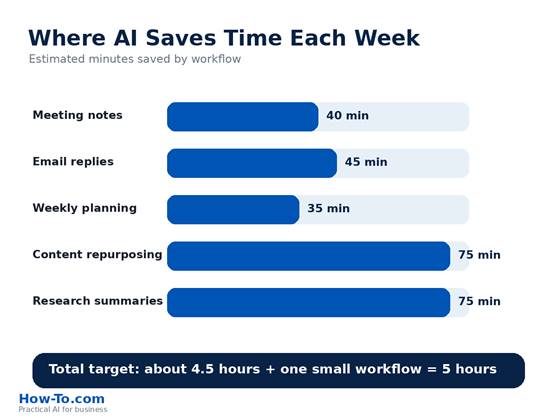
Infographic: Estimated weekly minutes saved by AI workflow.
Workflow 1: Meeting Notes to Action Items
Meetings create hidden work. Someone has to remember what was discussed, what was decided, who owns each task, and what happens next.
AI can turn rough notes into a clean action plan. It can identify decisions, organize tasks, suggest owners, flag open questions, and draft a follow-up email. You still need to review the details, but you no longer need to start from a blank page.
How it works
- Record or type rough meeting notes.
- Paste the notes into your AI tool.
- Ask for decisions, action items, owners, deadlines, risks, and follow-ups.
- Review for accuracy.
- Send the summary to the team.
| You are my business operations assistant. Turn the meeting notes below into a clear action summary. Include meeting purpose, key decisions, action items, owner, suggested deadline, open questions, and a follow-up email draft. Meeting notes: [Paste notes here] Format the output as a clean table followed by a short email. |
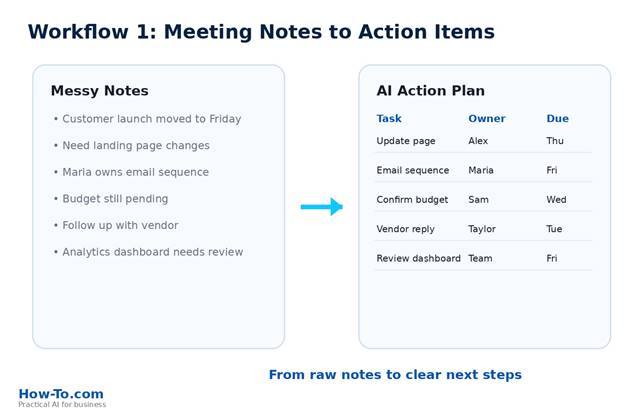
Screenshot-style graphic: Meeting notes converted into action items.
Workflow 2: Email Drafts and Replies
Email is one of the easiest places to save time with AI because many business emails follow patterns: customer questions, proposal follow-ups, scheduling replies, thank-you emails, sales outreach, vendor responses, and support replies.
AI should not replace your judgment. It should create a first draft that you edit. This is especially helpful when you know what you want to say but do not want to spend ten minutes shaping the wording.
How it works
- Paste the email or summarize the situation.
- Tell AI your goal.
- Define the tone: friendly, professional, direct, brief.
- Ask for two or three draft options.
- Edit before sending.
| Write a professional email reply. Context: [Explain the situation] My goal: [What you want to accomplish] Tone: Friendly, clear, confident, and concise. Requirements: – Keep it under 150 words – Do not overpromise – Include a clear next step – Give me 3 subject line options if this is a new email |
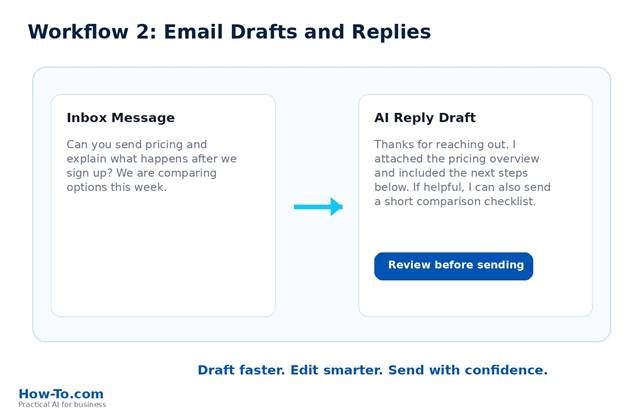
Screenshot-style graphic: AI email draft and reply workflow.
Workflow 3: Weekly Planning
AI can help turn a messy list of tasks into a focused weekly plan. This is especially useful for entrepreneurs and small teams because the problem is rarely lack of work. The problem is deciding what matters most.
Use AI to sort priorities, protect deep work, identify quick wins, and flag tasks that should be delayed or delegated.
How it works
- Paste your task list.
- Add deadlines, goals, and constraints.
- Ask AI to organize by priority.
- Separate deep work from admin work.
- Create a Monday-through-Friday plan.
| Act as my weekly planning assistant. Here is my task list: [Paste tasks] My top business goal this week is: [Goal] My available work blocks are: [Days and times] Create: top 3 priorities, a Monday-Friday plan, tasks to delegate or delay, quick wins under 15 minutes, and risks that could derail the week. Format as a simple weekly planning table. |
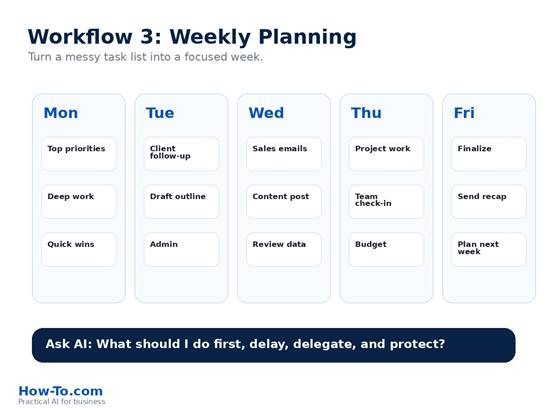
Workflow card: AI weekly planning board.
Workflow 4: Content Repurposing
If you create content, AI can help turn one idea into multiple useful assets. One blog post can become a LinkedIn post, Instagram caption, email newsletter teaser, X posts, a short video script, Facebook caption, checklist, or FAQ section.
This does not mean copying the same words everywhere. It means adapting the idea to each platform and audience.
- LinkedIn post
- Instagram carousel
- Short email newsletter
- Three X posts
- YouTube Shorts script
- Facebook caption
- Checklist graphic
- FAQ section
| Repurpose the content below for multiple marketing channels. Original content: [Paste blog post, video transcript, or outline] Create: LinkedIn post, Instagram caption, Facebook caption, 3 X/Twitter posts, 30-second Reel script, email newsletter teaser, and 5 carousel slide headlines. Audience: Small business owners who want practical AI tips. Tone: Clear, helpful, direct, no hype. |
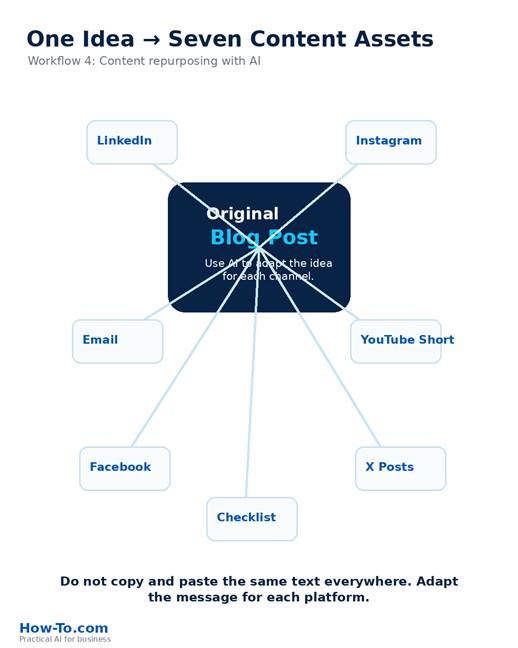
Infographic: One idea becomes seven content assets.
Workflow 5: Research Summaries
AI can help summarize research, but you must be careful. It can make mistakes, miss context, or sound confident when it is wrong.
Use AI to organize research, not blindly replace research. Ask it to summarize, list takeaways, identify questions, and flag claims that need verification.
How it works
- Collect source links, notes, transcripts, or documents.
- Paste the material into AI.
- Ask for a summary, key points, contradictions, and questions.
- Ask AI to separate facts from assumptions.
- Verify important claims before publishing.
| Summarize the research below for a beginner-friendly business article. Research material: [Paste notes or source excerpts] Create: plain-English summary, 5 key takeaways, important facts to verify, possible risks or limitations, questions a beginner would ask, and a suggested article outline. Clearly label anything uncertain. |
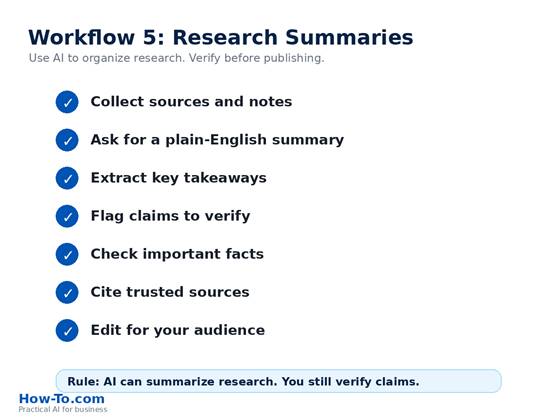
Checklist graphic: Research with AI, summarize, check, verify.
Step-by-Step: Build Your First AI Productivity Workflow
Step 1: Choose One Repetitive Task
Explanation: Do not start by trying to automate your entire business. Pick one task you repeat every week.
Example: Every Monday, you spend 45 minutes turning scattered notes into a weekly plan.
Prompt to Use: Help me identify which tasks from this list are best for an AI productivity workflow. Rank them by time saved, repeatability, and risk.
Common Mistake: Starting with a complicated, high-risk task.
Suggested Visual: Task selection matrix.
Alt Text: AI productivity task selection matrix.
Step 2: Define the Input
Explanation: AI performs better when it knows what material to work from.
Example: Meeting notes, customer emails, blog draft, research notes, or a task list.
Prompt to Use: Here is the input I want to use for this workflow. Tell me what information is missing before you create the output.
Common Mistake: Giving AI vague instructions with no context.
Suggested Visual: Input checklist.
Alt Text: Checklist of inputs for AI productivity workflows.
Step 3: Tell AI the Role and Goal
Explanation: A clear role helps shape the output.
Example: Act as my operations assistant or act as my marketing editor.
Prompt to Use: Act as my [role]. Your goal is to help me [specific outcome]. Use the information below and create [output format].
Common Mistake: Asking whether AI can help instead of assigning a clear job.
Suggested Visual: Prompt structure graphic.
Alt Text: AI prompt structure for business productivity.
Step 4: Specify the Output Format
Explanation: Tell AI whether you want a table, checklist, email, outline, or action plan.
Example: Format the result as a table with columns for task, owner, deadline, and next step.
Prompt to Use: Format the output as a table with columns for Priority, Task, Owner, Deadline, and Next Action.
Common Mistake: Accepting a long paragraph when a table would be easier to use.
Suggested Visual: Before/after output format.
Alt Text: AI output formatted as a business task table.
Step 5: Review, Edit, and Save the Workflow
Explanation: AI output should be reviewed before it is used with customers, employees, or the public.
Example: Save your final prompt in a document called Weekly AI Workflows.
Prompt to Use: Review this workflow and improve the prompt so I can reuse it every week.
Common Mistake: Using AI once and forgetting to save the process.
Suggested Visual: Reusable workflow library.
Alt Text: Saved AI productivity workflow library for business.
7. Copy-and-Paste AI Prompts
Meeting Notes to Action Items
| Turn these meeting notes into a clear action plan. Include key decisions, action items, owners, deadlines, open questions, and a follow-up email draft. Format the action items as a table. |
Email Reply Draft
| Write a professional email reply to the message below. My goal is [goal]. Use a friendly, concise tone. Keep it under 150 words and include a clear next step. |
Weekly Planning Prompt
| Act as my weekly planning assistant. Organize this task list into a Monday-Friday plan. Identify top priorities, quick wins, tasks to delay, and risks. |
Content Repurposing Prompt
| Repurpose this article into a LinkedIn post, Instagram caption, Facebook caption, 3 X posts, a 30-second Reel script, and 5 carousel slide headlines. |
Research Summary Prompt
| Summarize the research below in plain English. Include key takeaways, important facts to verify, possible limitations, and beginner-friendly explanations. |
Customer FAQ Prompt
| Create a customer FAQ from the information below. Write answers in a clear, helpful tone. Keep each answer under 100 words. |
Sales Follow-Up Prompt
| Write a polite sales follow-up email for a prospect who has not replied. Keep it helpful, not pushy. Include one clear call to action. |
Project Status Update Prompt
| Create a weekly project status update from these notes. Include completed work, current priorities, blockers, next steps, and decisions needed. |
8. Checklist
- Choose one repeatable weekly task
- Estimate how much time it currently takes
- Gather the usual input material
- Write a clear prompt with role, goal, context, and format
- Ask AI for a draft, summary, plan, or table
- Review the output for accuracy
- Edit for your voice and business standards
- Save the final prompt
- Reuse it next week
- Track time saved
- Improve the workflow after 2-3 uses
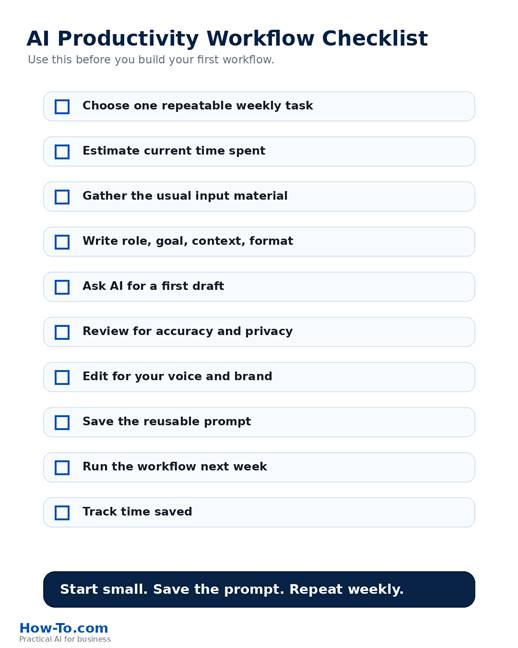
Downloadable-style checklist graphic: AI productivity workflow checklist.
9. FAQ
What are AI productivity workflows?
AI productivity workflows are repeatable systems that use AI to help complete recurring tasks such as summarizing notes, drafting emails, planning the week, repurposing content, or organizing research.
How can AI save 5 hours a week?
AI can save time by creating first drafts, summaries, checklists, plans, and formatted outputs faster than doing everything manually. The time savings come from repeatable weekly tasks, not one-time experiments.
What is the best AI workflow for beginners?
The easiest beginner workflow is turning meeting notes into action items. It is simple, repeatable, and produces a practical output you can use immediately.
Can small businesses use AI productivity workflows?
Yes. Small businesses can use AI workflows for customer emails, marketing content, weekly planning, research summaries, proposals, FAQs, and internal documentation.
Should I trust AI output without editing it?
No. AI output should be reviewed before use. Always check accuracy, tone, privacy, and business context.
What tools can I use for AI productivity workflows?
Common options include ChatGPT, Microsoft Copilot, Claude, Gemini, Notion AI, and AI features built into project management, email, and document tools.
What tasks should I not automate with AI?
Be careful with legal advice, financial decisions, confidential customer data, medical information, sensitive HR issues, and anything that requires expert judgment.
How do I make AI responses better?
Give AI a role, goal, context, examples, constraints, and output format. Clear instructions usually produce more usable results than vague requests.
10. Internal Linking Suggestions
- How to Learn ChatGPT for Business
- How to Use AI to Market Your Business
- How to Automate Your Business with AI
- How to Use ChatGPT to Make More Money in Your Business
- Best AI Tools for Small Business Owners
11. External Source Suggestions
OpenAI Prompting Guide: https://developers.openai.com/
OpenAI Business / ChatGPT for Work Resources: https://openai.com/business/
Google Search Central SEO Starter Guide: https://developers.google.com/search/docs/fundamentals/seo-starter-guide
Google Search Central Meta Tags Documentation: https://developers.google.com/search/docs/crawling-indexing/special-tags
Microsoft 365 Copilot Resources: https://www.microsoft.com/en-us/microsoft-365-copilot
More Resources
Ready to automate more repetitive work? Learn the step-by-step system in How to Automate Your Business with AI and start building workflows that save time every week.
Explore How-To.com books by Taylor Nova, join the mailing list, and follow How-To.com on Facebook and Instagram.
Taylor Nova Amazon Author Page: http://amazon.com/author/taylornova
How-To.com Mailing List: https://how-to.com/newsletter-subscribe/
How-To.com YouTube: http://www.youtube.com/@HowToOnYourPhone
Subscribe to How-To.com YouTube: http://www.youtube.com/@HowToOnYourPhone?sub_confirmation=1
How-To.com Facebook: https://www.facebook.com/HowToOnYourPhone
How-To.com Instagram: https://www.instagram.com/howtoonyourphone/